
BURSTREEL FIELD GUIDE / 01
Catch the
whole moment.
A burst gives you a run of photos before the moment disappears. Here’s how to take one with the Camera app on iPhone or iPad—and bring every available frame into BurstReel.
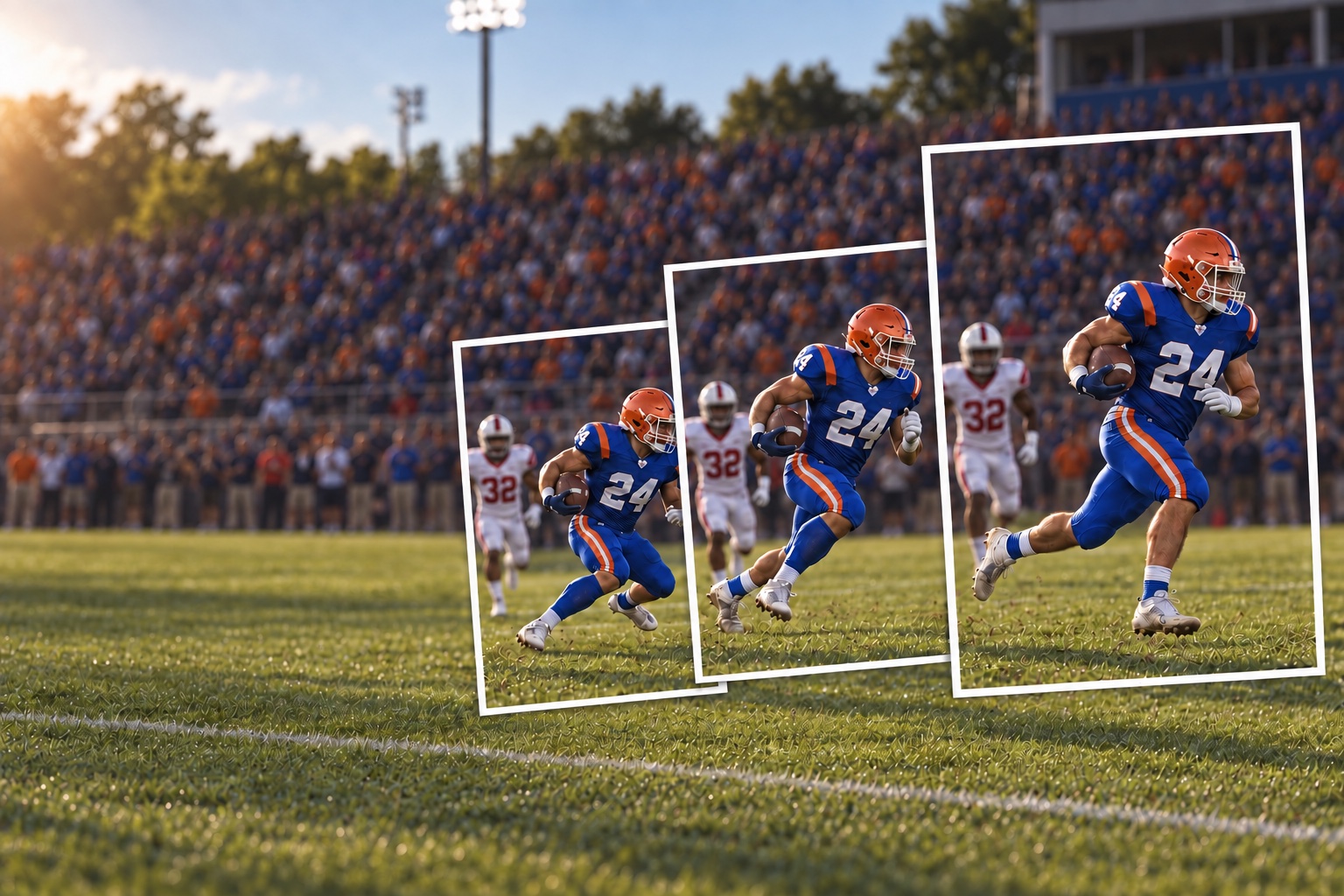
The gestures are different. The idea is the same: keep the shutter going while the action happens.
IPHONE / IPAD01 / IPHONE
Slide left.
Keep shooting.
In the Camera app, switch to Photo. Touch the white shutter button, drag it to the left, and keep your finger down while the action unfolds. Lift your finger to stop.
- 01Open Camera in Photo mode.
Frame the subject and leave room for its movement.
- 02Drag the shutter left and hold.
The number on screen counts the frames as you shoot.
- 03Release to finish.
Your burst appears together in Photos.
Another way: Turn on Settings → Camera → Use Volume Up for Burst, then hold Volume Up. On older iPhone models, touch and hold the shutter instead of sliding it.
02 / IPAD
Press. Hold.
Let go.
On iPad, the gesture is simpler. In the Camera app, choose Photo or Square, then touch and hold the shutter button. Lift your finger when you have the sequence.
- 01Choose Photo or Square.
Both camera modes support Burst on iPad.
- 02Touch and hold the shutter.
Watch the counter as the camera takes rapid-fire photos.
- 03Lift your finger to stop.
Open the burst thumbnail in Photos to review it.
BEFORE YOU PICK FAVORITES
Keep the frames
you want to use.
Photos lets you review a burst and save selected shots separately. If you want the full sequence in BurstReel, import it before discarding any frames. A frame already deleted from Photos cannot be recovered by BurstReel.
03 / MAKE IT MOVE
From Photos
to BurstReel.
Open or create a BurstReel project on iPhone or iPad. Choose Import Burst from Photos, allow Full Access when prompted, and select the burst. BurstReel copies every available frame in capture order and prepares the video. Your originals stay in Photos.
Use the dedicated burst importer. The regular photo picker or Share sheet may bring in only the representative shot.
 ↑ IMPORT BURST FROM PHOTOS